Deploy OpenOps on your local machine
You don’t need a beefy machine for a test deployment. A modern OS like Windows 11, macOS Big Sur or later, or Ubuntu 20.04+ will do (see more on supported operating systems). You’ll also need Docker, so see Docker requirements to make sure you have a compatible version of a Docker client. Once you know your machine meets the system requirements:- Go to the OpenOps Releases page on GitHub and download
docker-compose-release-{version}.zipfrom the latest release. - Unzip the file to a new directory with a semantic name: for example,
openops-installation. - Inside the directory, make a copy of the
.env.defaultsfile and save it as.env. - Open the
.envfile and find two variables that represent admin credentials:OPS_OPENOPS_ADMIN_EMAILandOPS_OPENOPS_ADMIN_PASSWORD. Change the values of these variables. - Make sure your Docker client such as Docker Desktop is running (if you’re deploying on Linux, you don’t need this).
- Inside the
openops-installationdirectory, open a terminal and perform the following command to download Docker images:Wait until all images are pulled: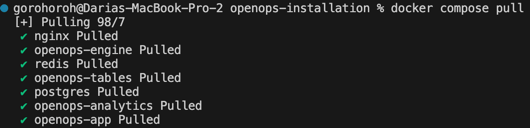
- To launch OpenOps, run this in your terminal:
Wait until all volumes are created, and all containers are either
HealthyorStarted: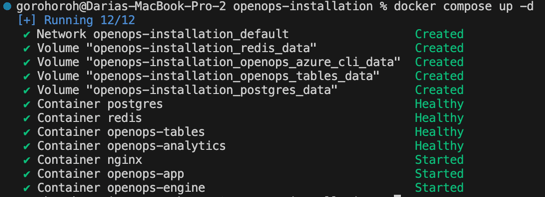
- If you want to configure Slack approvals, please see setting up Slack on local environment
Open OpenOps in your browser
Your OpenOps instance is now available at http://localhost/, so go ahead and open it in your browser: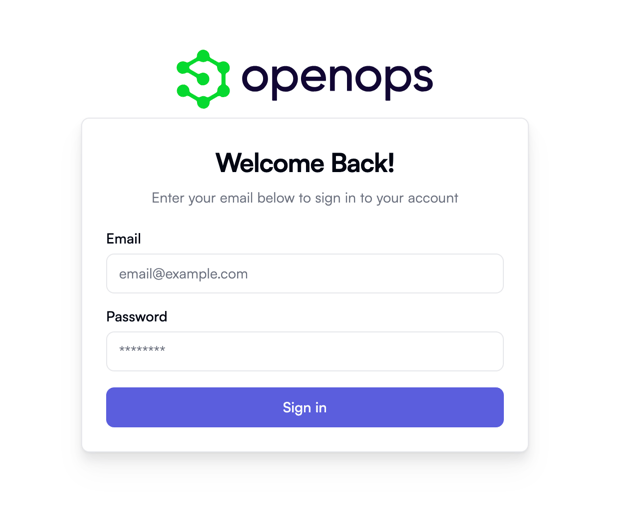
.env file.
Look around
After logging in, the first thing you’ll see is the OpenOps Overview view: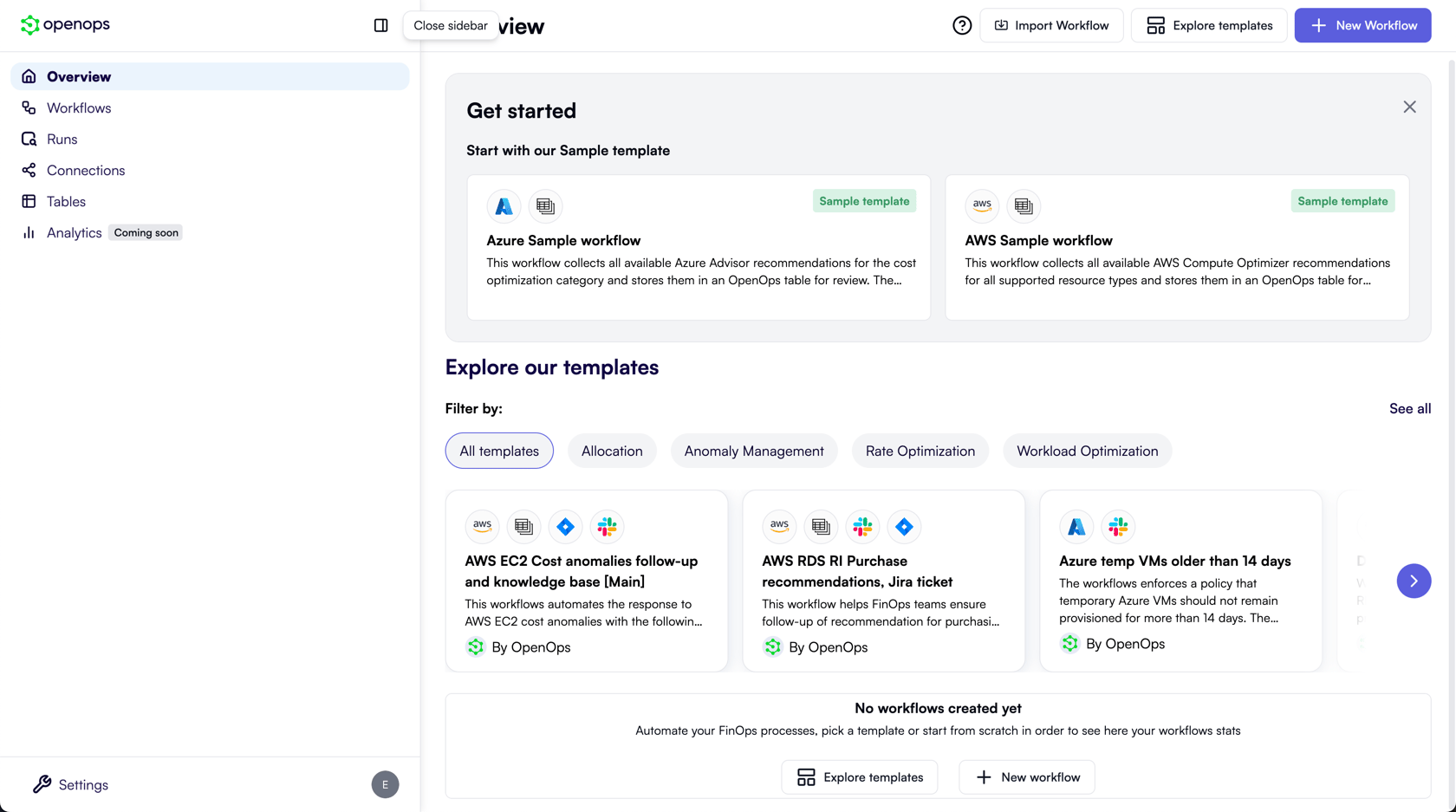
- Workflows will let you keep track of the workflows that you create.
- Runs will keep a history of executing your workflows, indicating start time and status.
- Connections will list all permissions you provide to OpenOps for various cloud providers and services, as well as let you create new ones.
- Tables will store data collected by workflows, as well as any information you enter or import to use in your workflows.
Run a sample workflow
Back in Overview, OpenOps suggests two sample beginner-level workflows to help you get a feel of the product. Let’s use one of them to collect all available AWS Compute Optimizer recommendations for a variety of AWS resource types, and save the recommendations to an OpenOps table. Click AWS sample workflow: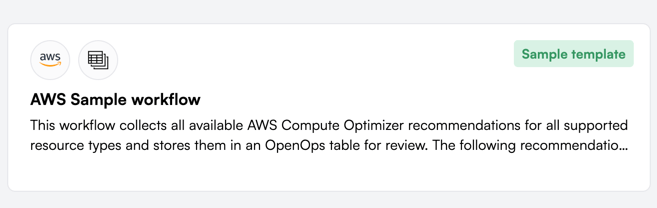
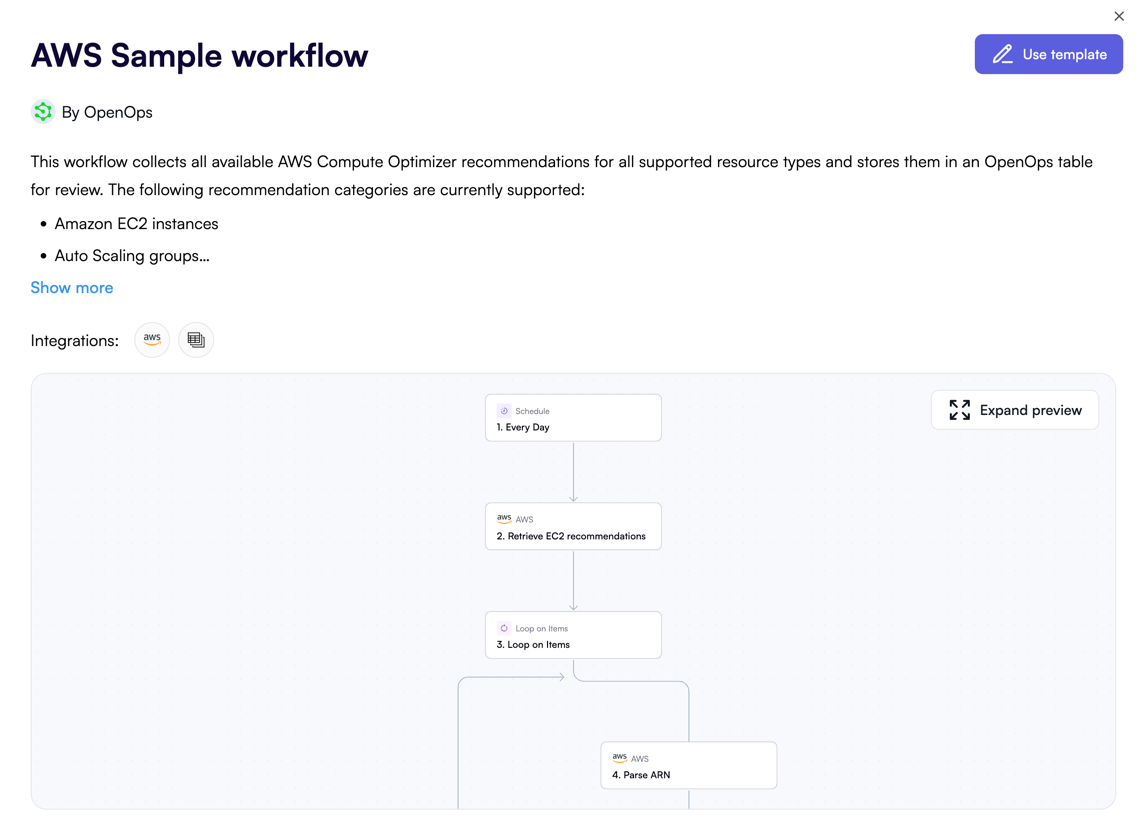
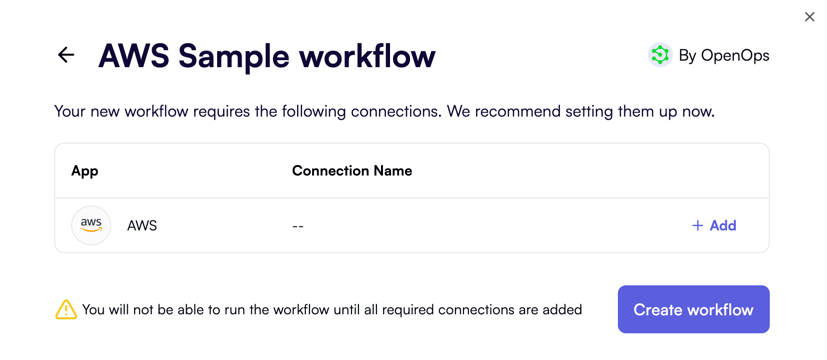
Configure an AWS connection
You could add the connection later, but let’s do it now. Click + Add alongside the required connection.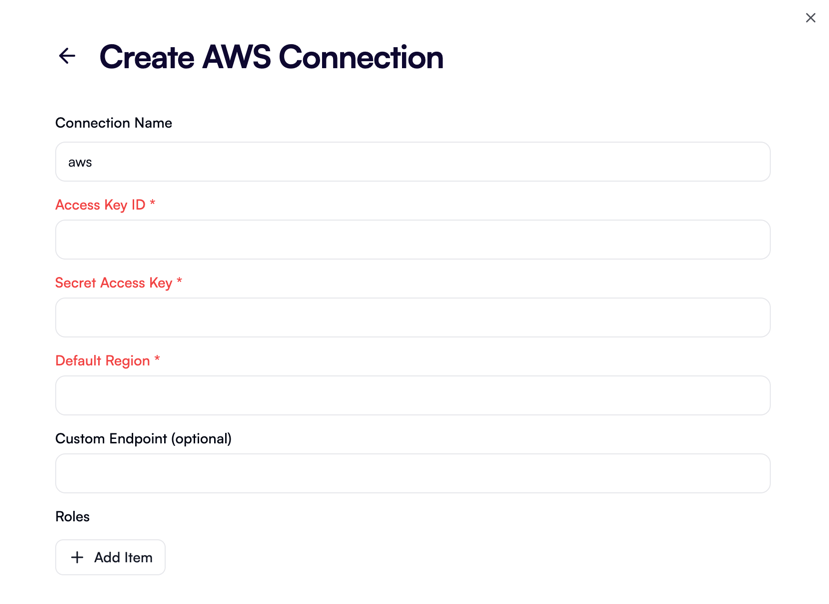
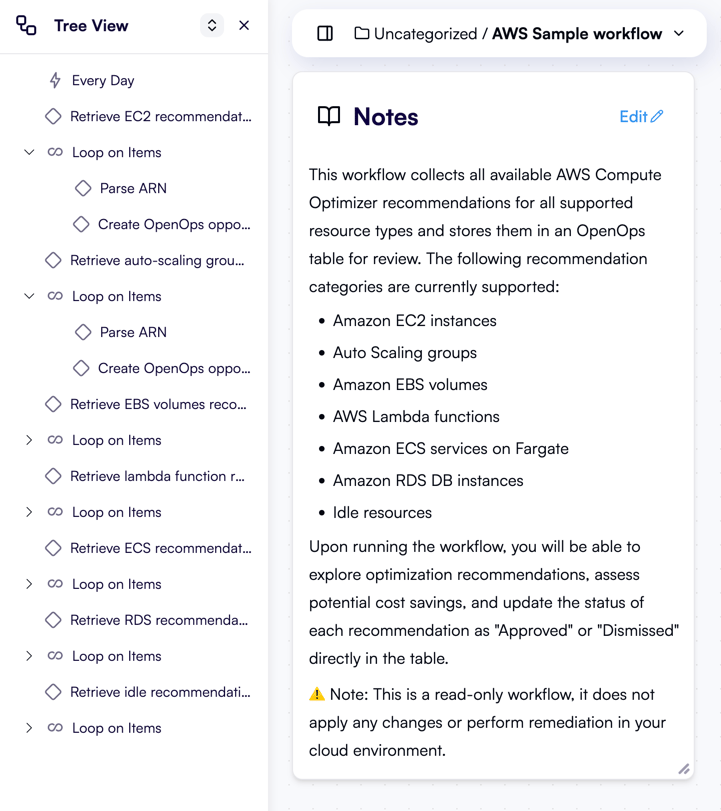
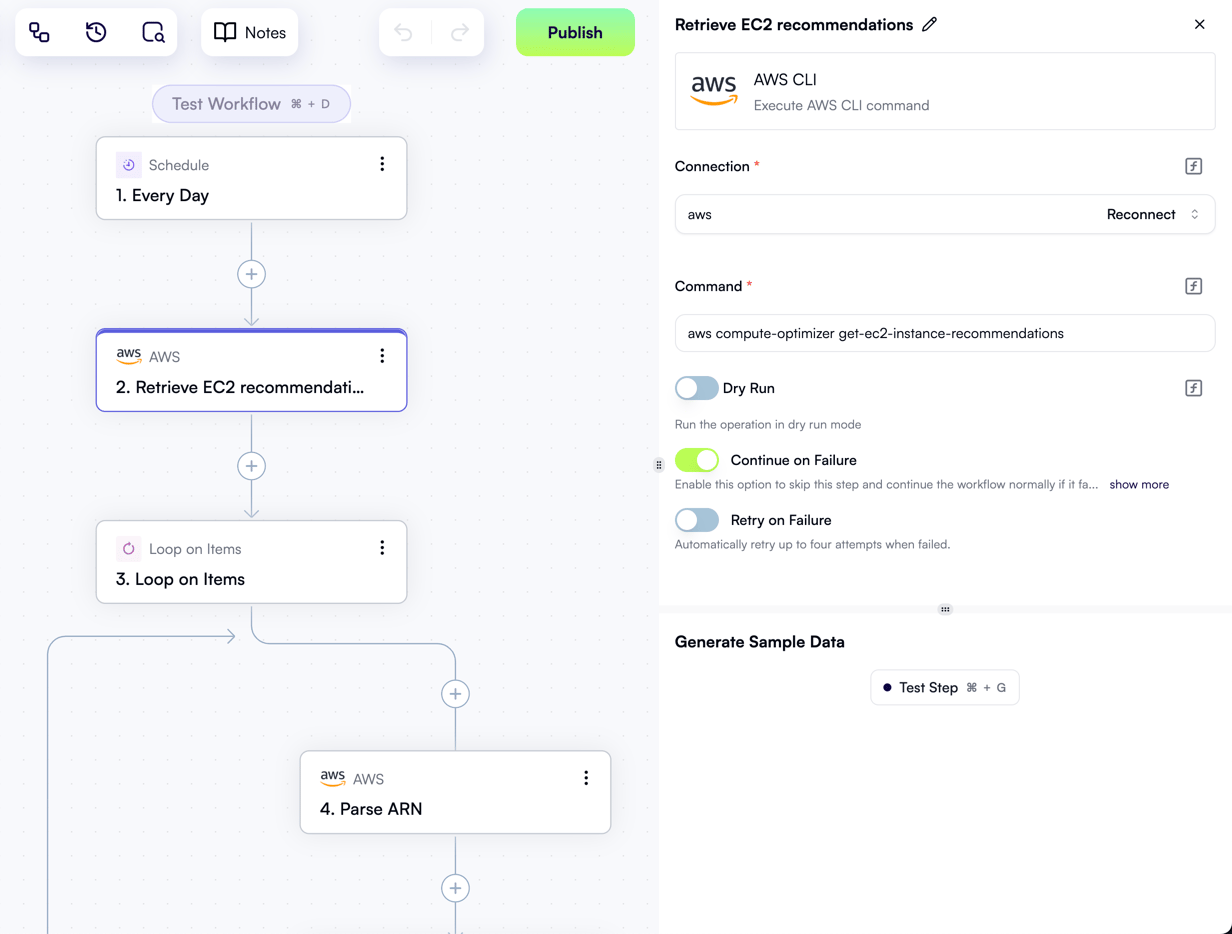
Look around the workflow editor
When the workflow summary popup displays again, this time with a connection defined, click Create workflow. The new workflow now displays in the workflow editor: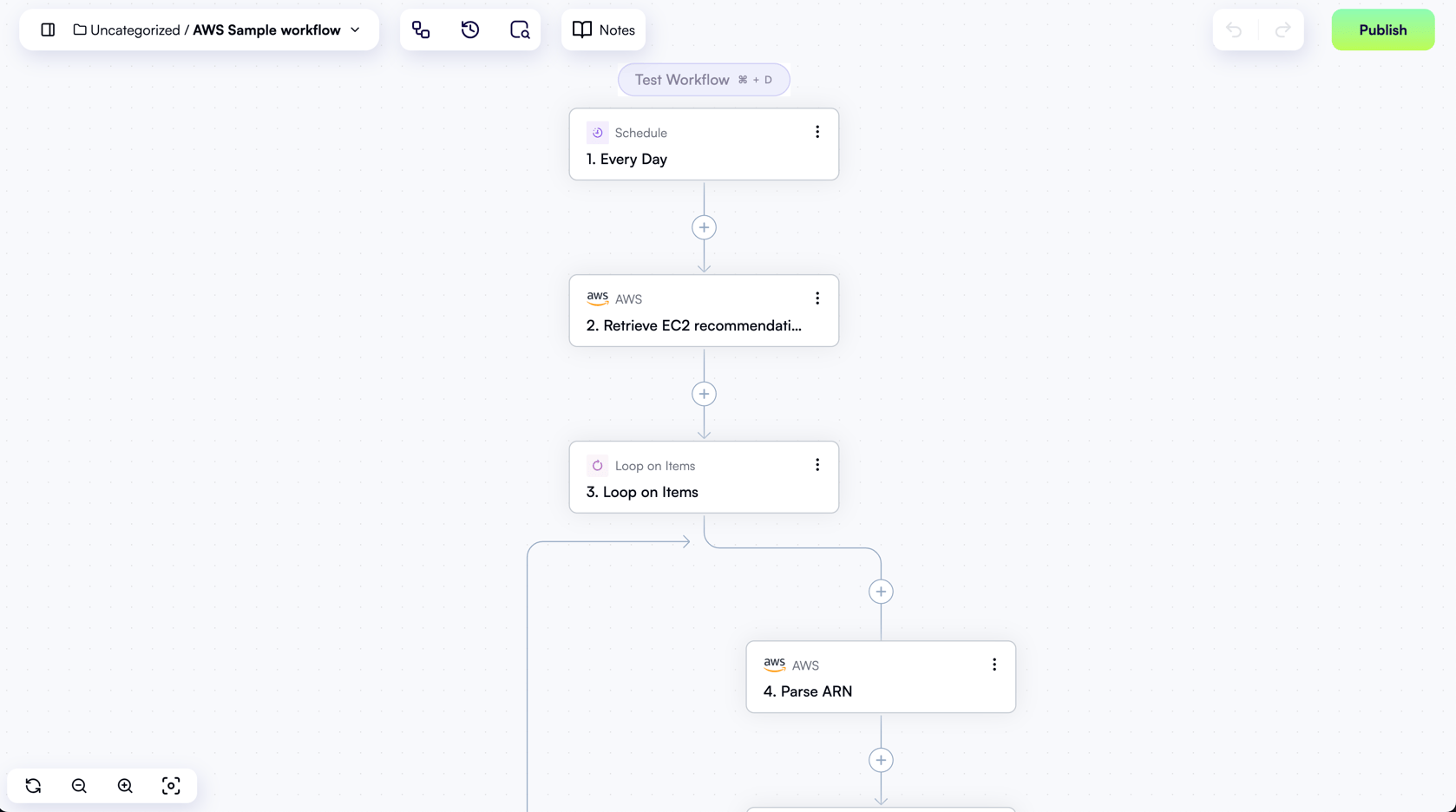
Test the workflow
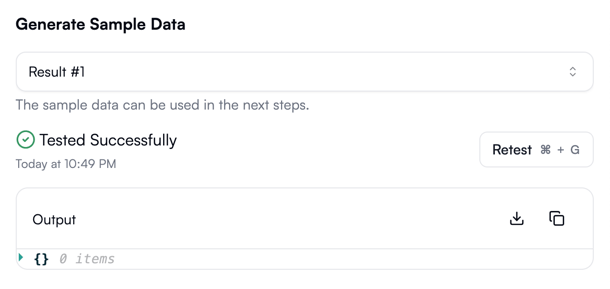
Before your workflow goes live, you need to test it. Testing the workflow runs it in full, so you can treat it as an on-demand run in addition to its scheduled runs. At the top of the workflow editor, above the trigger, there’s a Test workflow button. However, right now it’s grayed out, and if you hover over it, OpenOps will ask you to test your trigger first: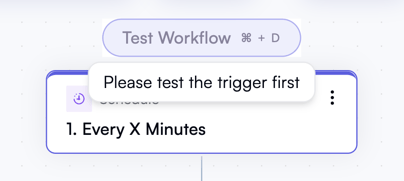
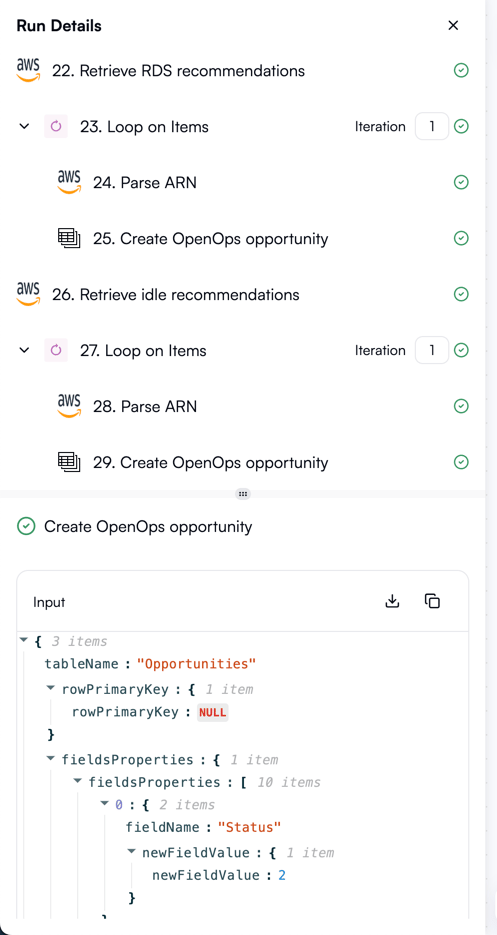
Publish the workflow
To start running the workflow on schedule, you need to publish it. When testing, the workflow editor switches to read-only mode. To get back to editing mode, click Edit on the top right. Once back in the editing mode, the top-right button is now called Publish. Click it, and as soon as you do, your workflow is live! It will now run periodically on the schedule defined by its trigger.See the results of your test run
When you tested the workflow, it was a full on-demand run. Some of the workflow steps fetched AWS Compute Optimizer recommendations for various AWS resource types, and other steps recorded these recommendations to an OpenOps table. Let’s see what’s been recorded to the table. Click the book icon on the top left to show the sidebar. In the sidebar, click Tables: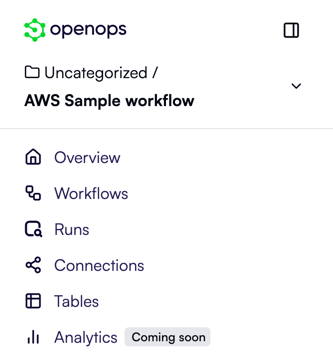
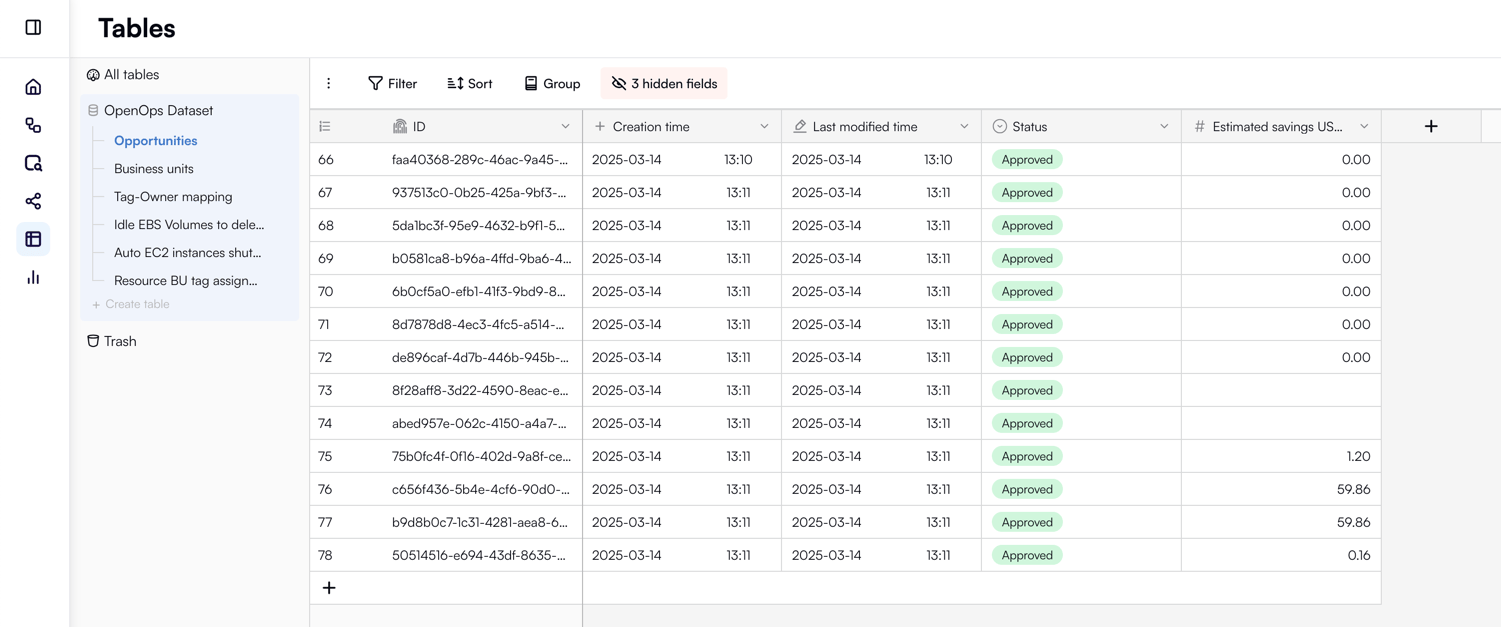
Get templates for your future workflows
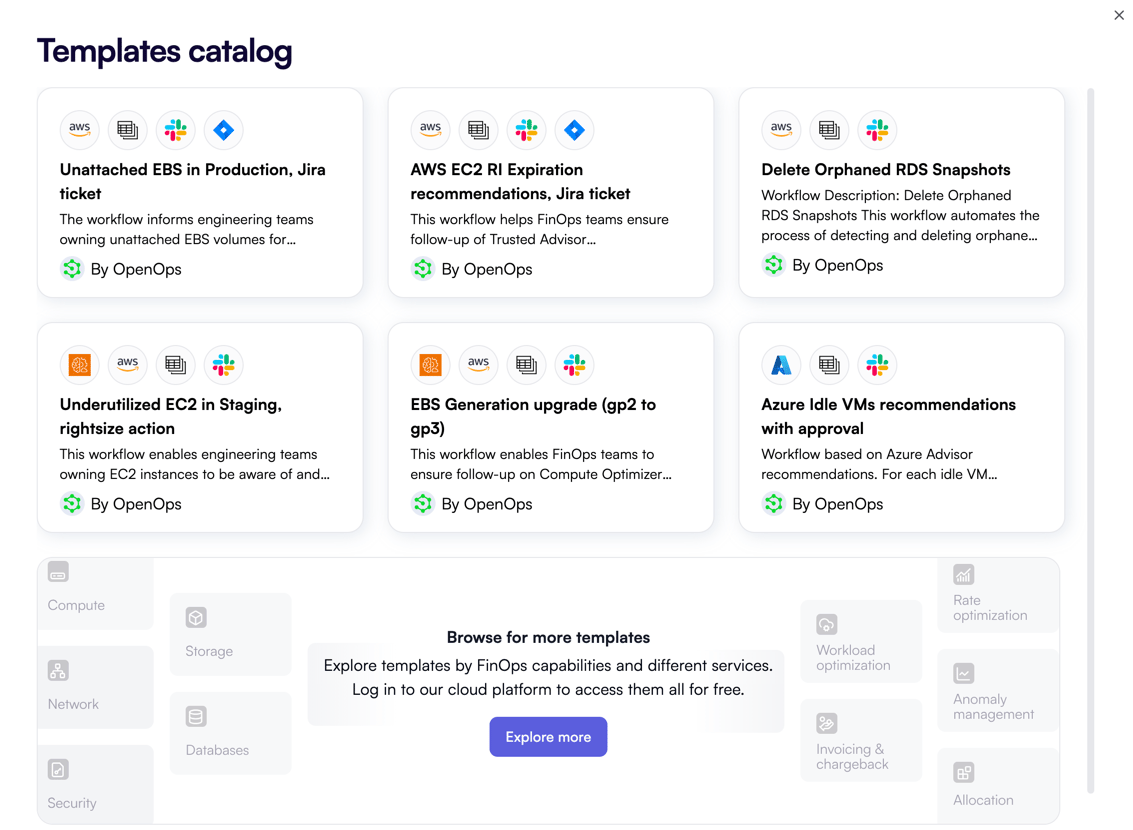
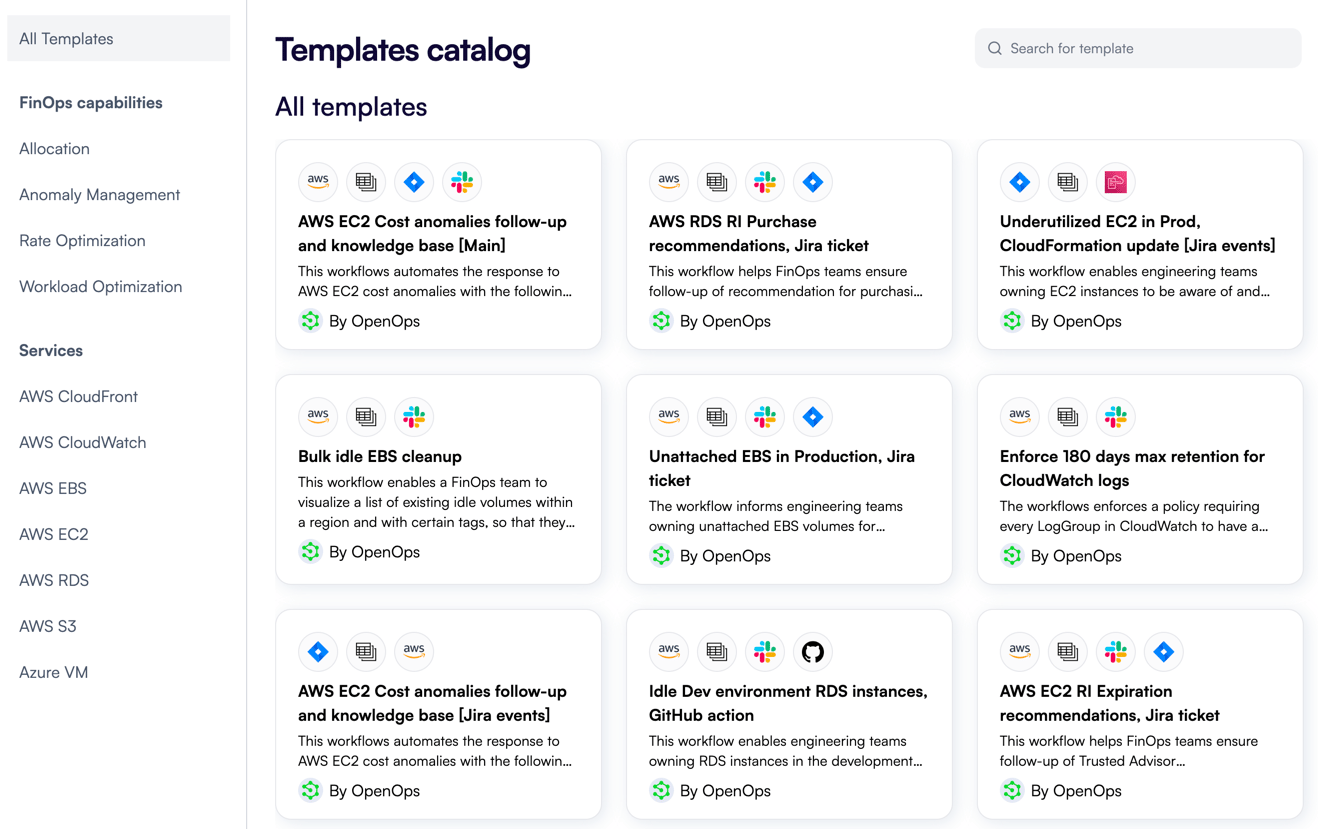
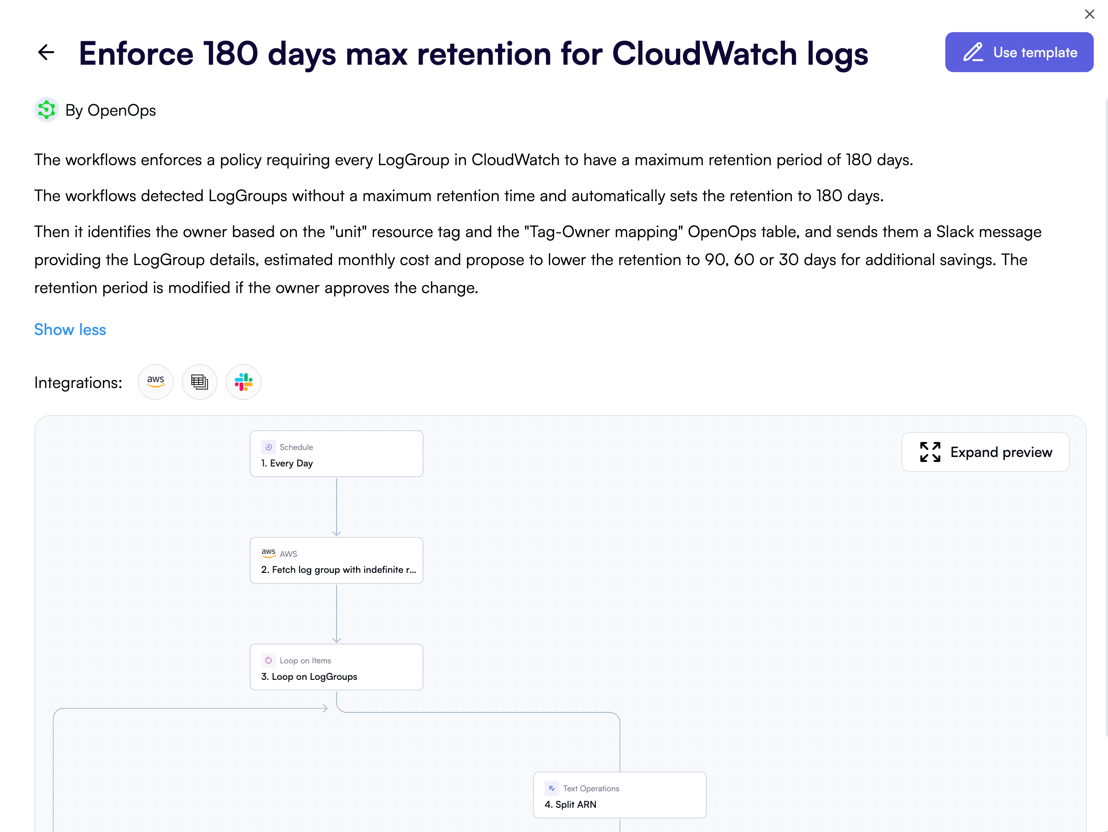
The sample AWS workflow that you’ve just tested and published provides just a quick glance of what OpenOps can do. In real FinOps scenarios, you would want your workflows to do more: for example, find owners of unused resources, request their decision on whether to delete or keep resources, and if they decide to delete, then execute IaC automations and create GitHub pull requests. Fortunately, OpenOps provides dozens of real-world FinOps templates that you can base your workflows on. To get hold of them, in the sidebar, click Overview. Then click Explore templates in the top-right menu bar to see the Templates catalog: