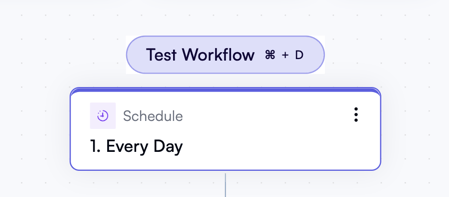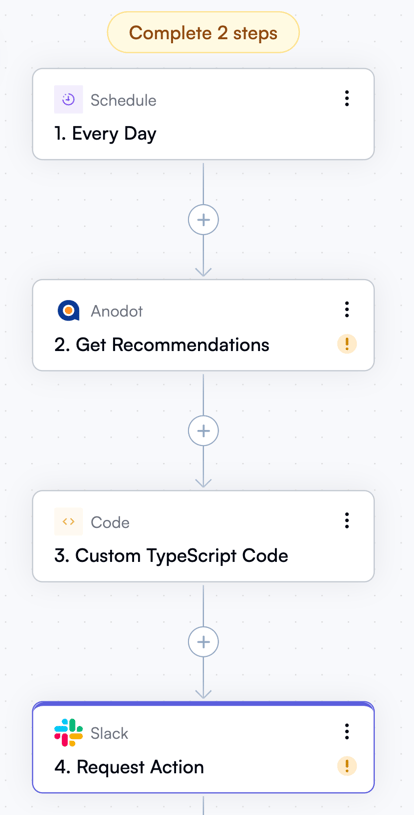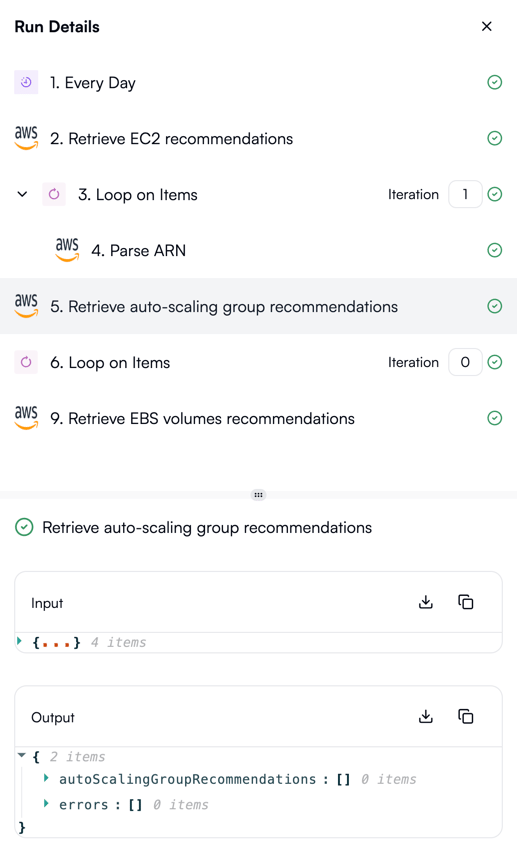
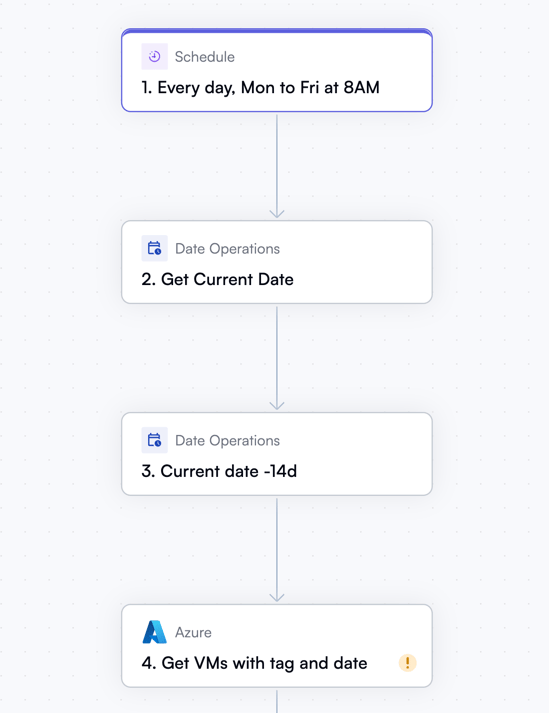
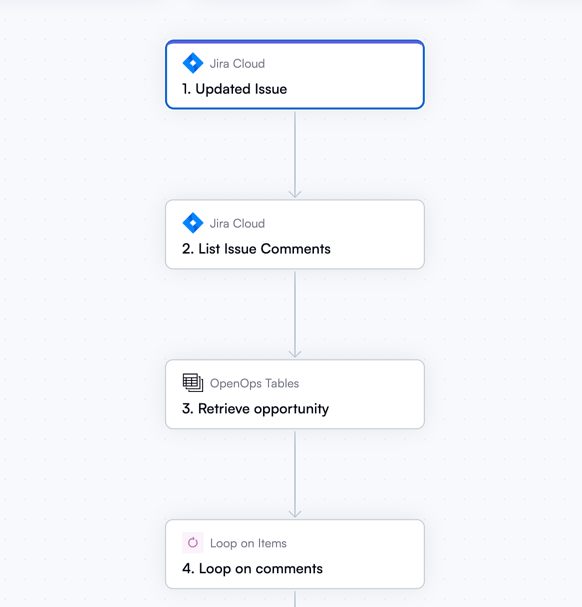
- A trigger is your workflow’s first step. It defines how often your workflow executes. It may also represent an event that needs to occur for your workflow to kick off. A workflow always has exactly one trigger.
- Actions are all subsequent steps of your workflow that start executing once your workflow is activated by a trigger.
Creating a new workflow
To create a new empty workflow, go to the Workflows section in your OpenOps instance, and click New Workflow in the top right corner. What you’ll see is the workflow editor, which initially looks like this: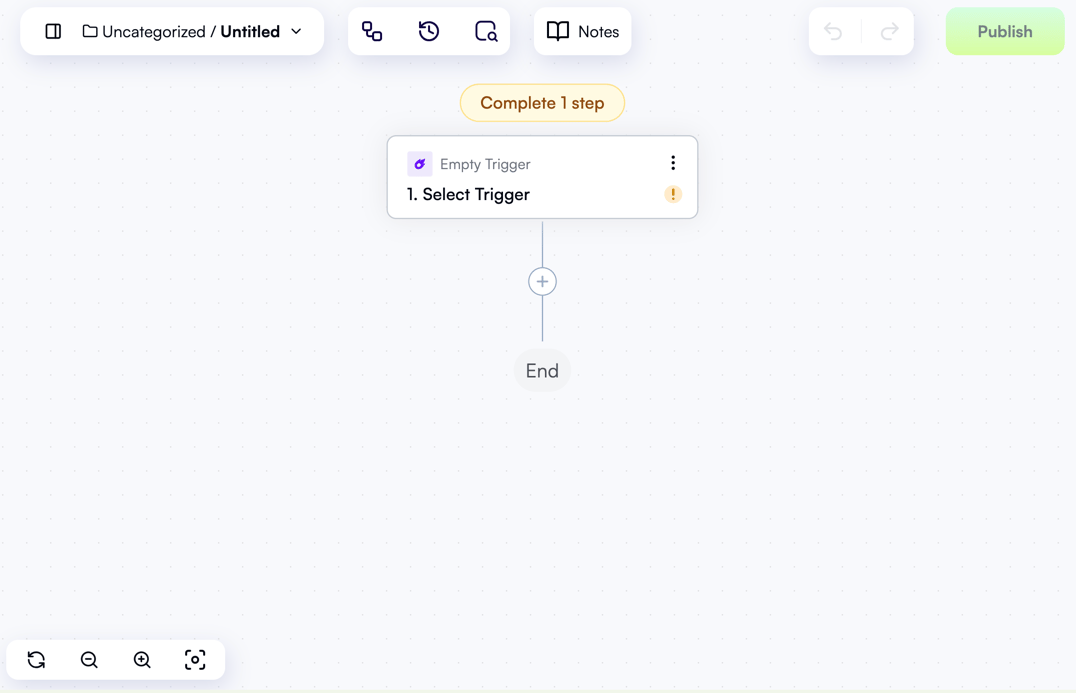
- In the top left corner, if you click the arrow next to the workflow name, Untitled, you get access to a menu that lets you rename the new workflow, delete it, or move it to a folder for better organization:
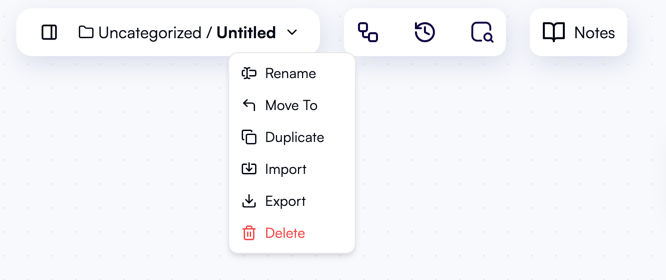
- The icon to the left of the workflow folder and name is a switch that lets you show or hide the sidebar, which contains the main OpenOps navigation menu.
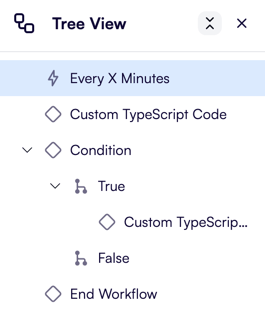
- To the right of the workflow name, you have several buttons: Tree view, Version history, Run logs, and Notes. Version history and run logs will be more relevant when you update or troubleshoot your workflows later on. For now, you can use Notes to describe the intent of your workflow in detail or leave any other comments for future reference. You can also click Tree view to display an aside showing the compact structure of your workflow, including its trigger, all actions, as well as conditions and branches:
Adding a trigger
When you create a new workflow, the editor creates an empty stub trigger. Click the trigger node to select a trigger group that works for you: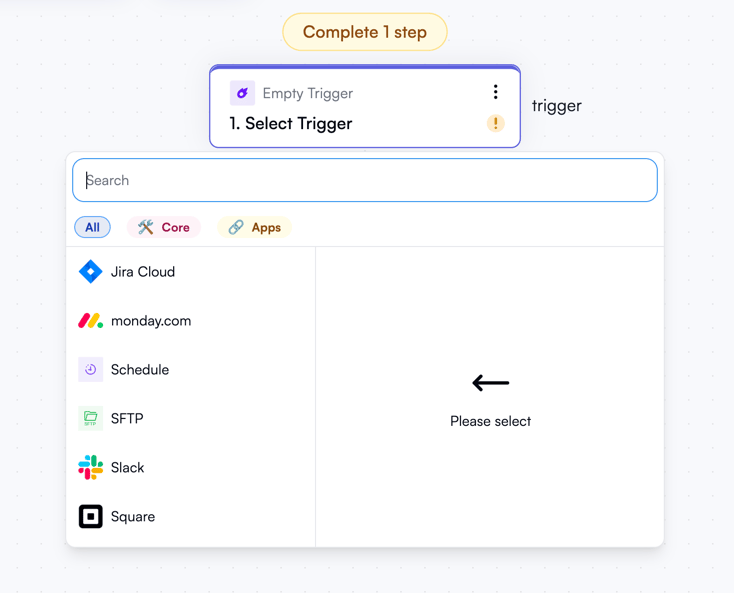
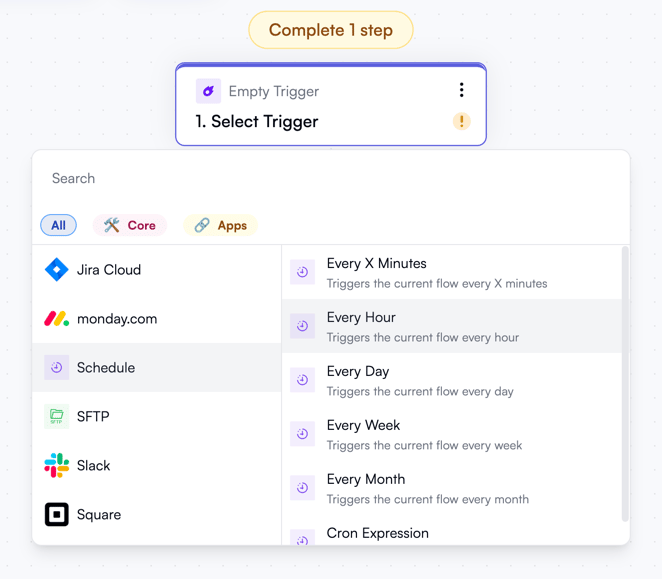
- Schedule: Every X minutes, Every hour, Every day, Every week, Every month, Cron expression.
- SFTP: New file.
- Webhook: Catch webhook.
- Slack: New message, New reaction.
- Jira Cloud: New issue, Updated issue.
- Monday.com: New item in board, Specific column value updated in board.
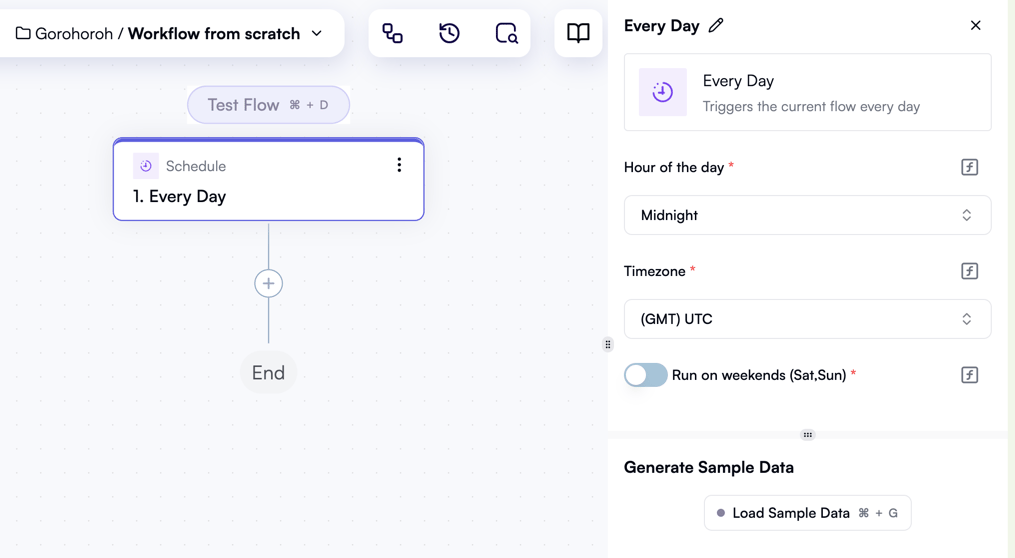
Adding an action
As soon as you’ve created a trigger, the next and all subsequent steps of your workflow will be actions. Click the + icon under the trigger, and a pop-up menu will display a list of available action categories. Clicking a category lets you select a specific action: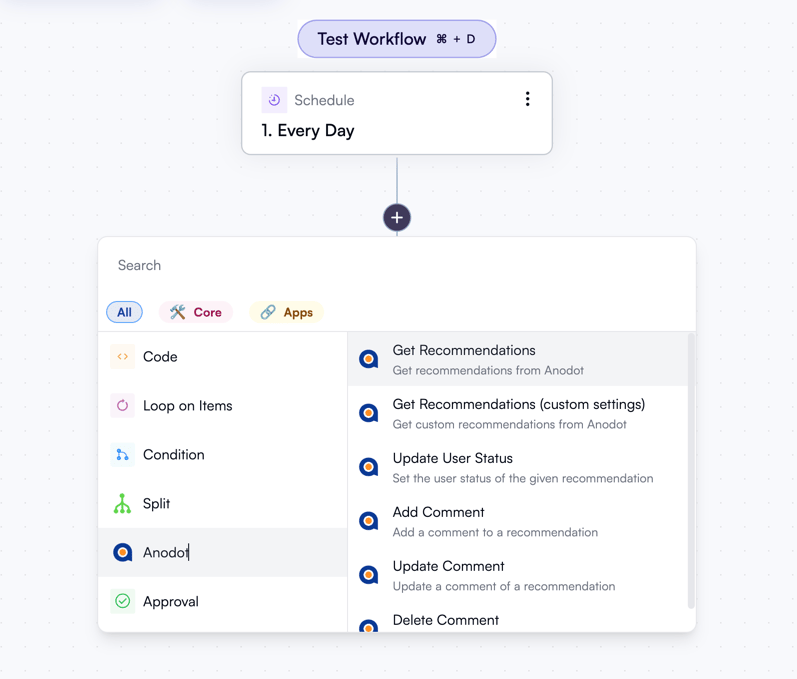
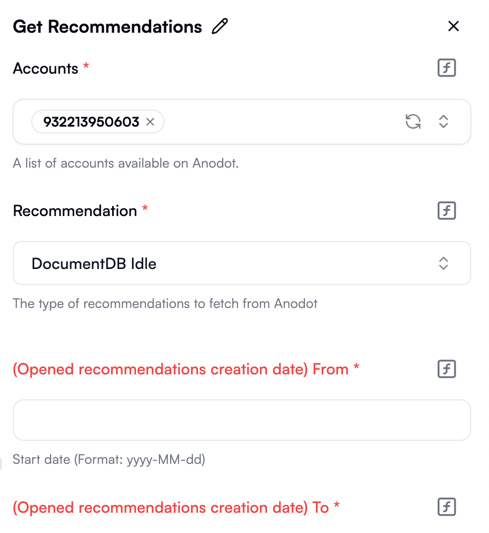
- To get data for your workflow to process, look at cloud provider integration actions like AWS or Azure, recommendation provider actions such as Anodot and AWS Compute Optimizer, or generic HTTP actions.
- To control the execution of your workflow, use actions grouped under Condition and Split, Loop on items, Delay, and End Workflow.
- To process data obtained in previous steps, use Date, List, Math, and Text operations, Data mapper for advanced transformations, and Code for transformations that you can’t express with available no-code actions.
- To request human intervention, use Approval or Slack.
- To make or request changes to cloud resources, use cloud provider actions, IaC integration actions like AWS CloudFormation and Terraform, and the GitHub action.
- To make updates in project management tools, use Jira Cloud or Monday.com actions.
- To save data and generate reports, use SMTP, SFTP, Storage, and OpenOps Tables actions.
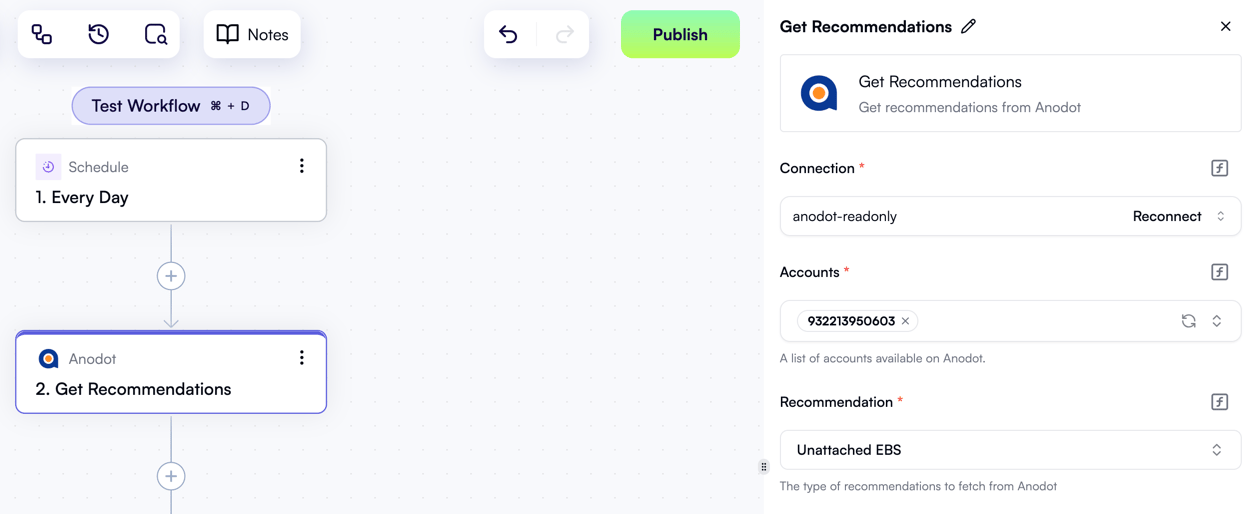
- Actions that get data from or send data to external resources will require you to define a connection. For example, for AWS-related actions, you’d need to specify your access key ID, secret access key, and the default region. For a Slack connection, you’d specify your Slack instance’s redirect URL, your client ID, and your client secret. One connection can be reused across multiple actions, and the OpenOps UI provides a separate view to list all connections you have defined so far.
- Actions that process data obtained in previous steps will ask you to specify the input data. For details, see Passing Data Between Workflow Steps.
- Every action has two toggles: Continue on Failure, which lets the current action fail and continues the workflow regardless, and Retry on Failure, which retries the current action up to four times before giving up.
Testing a workflow
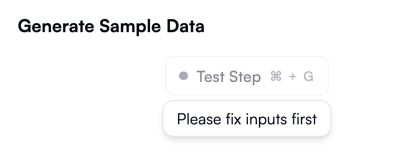
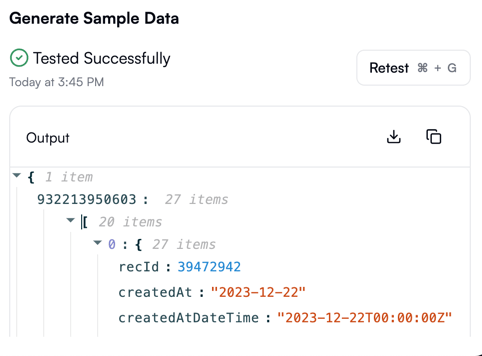
Underneath the properties pane, every action has a Generate Sample Data section and a Test Step button, which lets you test or retest the action in isolation. Sometimes, this button may be grayed out, like this: