

On macOS
Install Docker Desktop
Follow these instructions to install Docker Desktop.Run docker compose
- Open a new Terminal window and run the following command to create a folder and download the OpenOps release files:
- Pull the images and run docker compose. If you face a rate limit while downloading, run the command again.
.env file, the default username is “admin@openops.com” and the default password is “please-change-this-password-1”.
Updating your version
First, stop the running containers:Cloud Templates
On localhost, cloud templates may not be able to load when using the Safari browser.Configuring Slack Approvals
If you would like to run a workflow that uses Slack approvals, please follow the steps:- Download and create a free account in ngrok
- Start ngrok
- Copy the Forwarding address
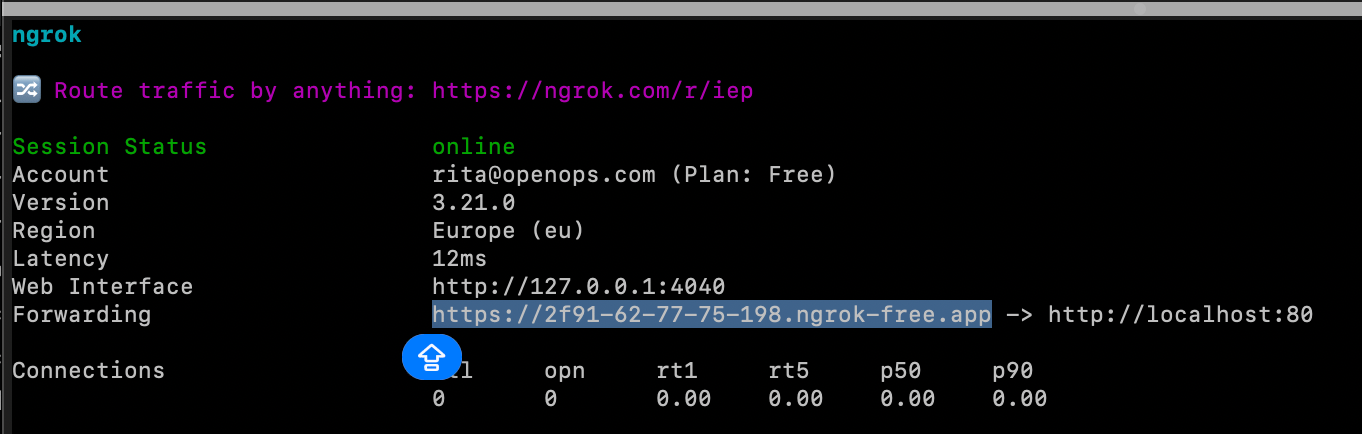
- Go to the OpenOps installation directory
- Inside the directory, make a copy of the
.env.defaultsfile and save it as.env - Open the file and set OPS_PUBLIC_URL to the Forwarding address you copied in step 3
- Restart the containers
Using Azure CLI in workflows: running with local credentials
It is possible to share your local session with the platform for local applications. To do this, you need to set two environment variables in the.env file under the installation folder:
OPS_ENABLE_HOST_SESSION=true: enables sharing of the host session with the platform container.HOST_AZURE_CONFIG_DIR="~/.azure": defines the path to the host machine’s Azure configuration folder that will be shared with the platform container.